
Getting a Citi bank account statement converted to a CSV format is pretty easy if you know the right tools. If you open a savings, money market, or consumer checking account, you are automatically enrolled in Paperless Statements.
A CSV statement has its own uses for easy financial analysis, tax preparation, data import/export, record keeping, and more (covered below). I will show you the easiest way to get a CSV statement for your Citi online account.
How To Get A CSV From Citibank?
Want to get a CSV file from Citibank? Worry not. The steps listed below clearly mention how you can get a CSV of your Citi bank account statements.
1. Log In To Your Citi Bank Account Online Portal
You can download your Citi bank account statements using the website and the Citi mobile application. Let’s take a look at how you can download your account statement using both below:
Logging In Using The Website
Using the Citibank website to download your bank statement is a pretty standard method. Let’s take a look at the steps to do so.
Step 1: Go to the official Citibank website.
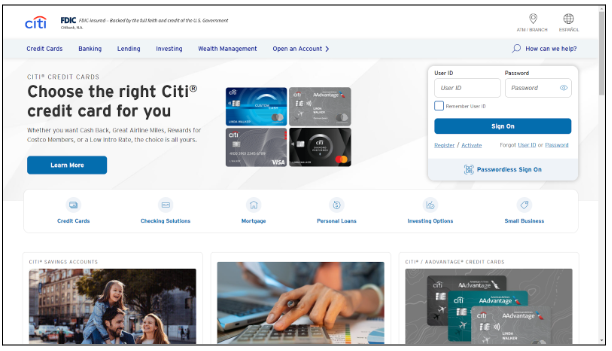
Step 2: Fill in your User ID and Password
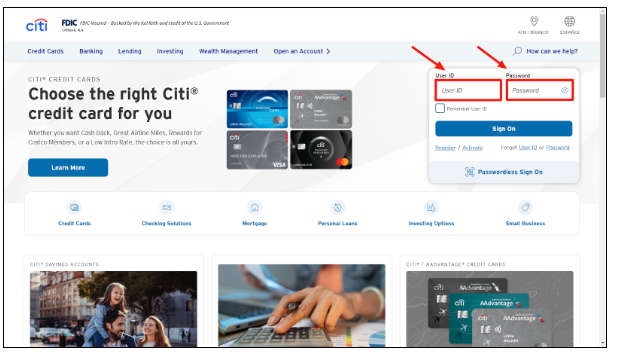
Step 3: Click on Sign On to log into your Citi account.
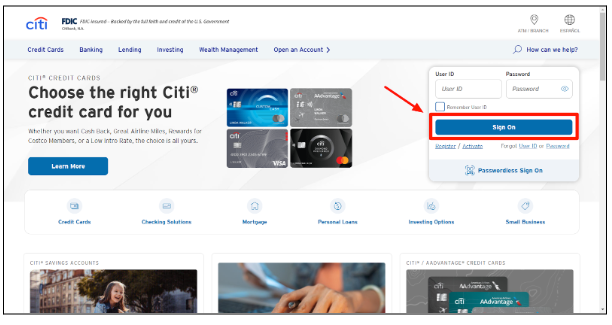
You will be logged into your Citi bank account if you have entered the correct user ID and password. You can always choose the Forgot User ID or Password link below the Sign On button if you forgot one or both.
Step 4: Once on the Home Page, click on ‘View Account Summary’ on the left.
Step 5: Click on the required account statement. E.g., your Savings Account.
Step 6: Scroll down and enter the required details. Choose a file format (e.g., XLS file) and hit ‘OK.’
Doing this will start the download of your Citibank account statement.
Logging In Using Citibank Mobile Application
Alternatively, for convenience, you can also download your Citi bank statements using the Citi mobile app. Here are the steps:
Step 1: Log in to your Citi Mobile application.
Step 2: Click on the Account tab on your Home Screen.
Step 3: Now, choose the needed account statement (e.g., for your Citi Savings Account.)
Step 4: You can view all of the debit and credit transactions as you scroll with the most recent ones on the top. You can click on the ‘Filter Transactions’ to specify a time period.
Step 5: Lastly, enter the details like date range, transaction type, and amount range and click on ‘Apply’ to get a full view of your statement.
This will start the download process of your Citibank account statement.
2. Converting The PDF Statements To CSV Files
- Using Bank Statement Converter to convert PDF to CSV
Most of the time, you will get a PDF file with your Citi bank account statements for a range of dates that you had selected earlier. You will need a PDF to CSV converter to convert your bank account statement into a CSV file.
Note: We will be using the Bank Statement Converted tool for this part.
Step 1: Access the Bank Statement Converted tool by searching it on Google.
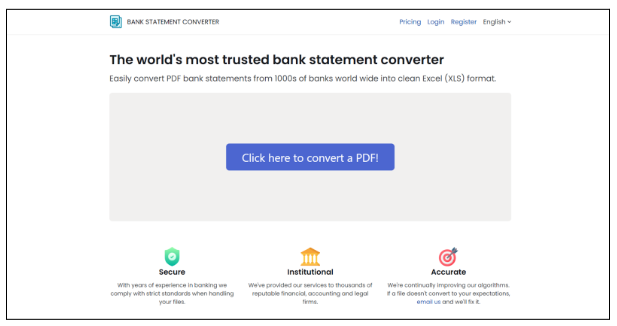
Step 2: Click on the “Click here to convert a PDF!” button to access your Citi account statements.
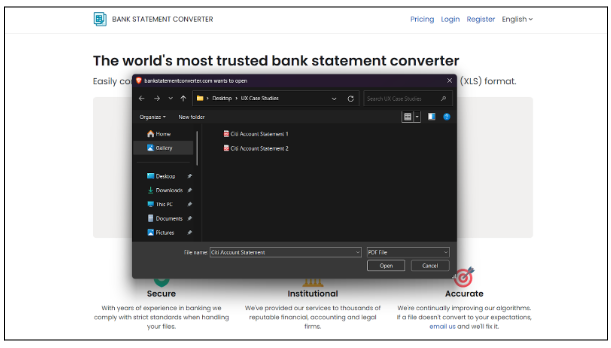
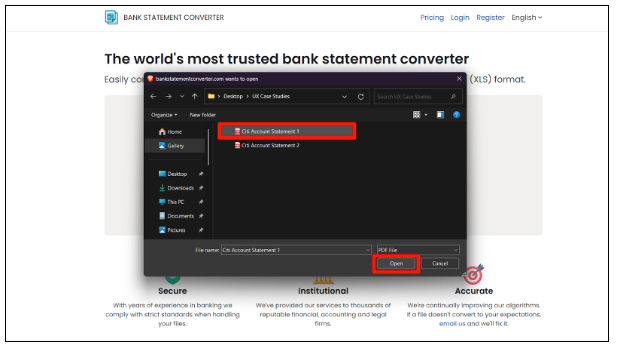
Step 3: Select your Citi bank account statement PDF file and click on Open. With the file to upload, you will see the progress on your screen.
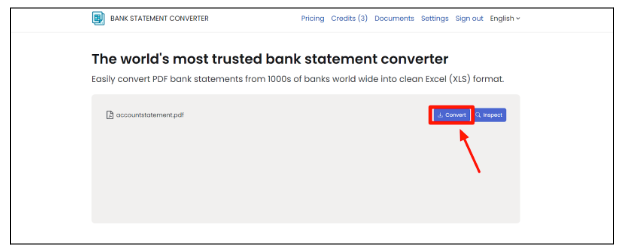
Step 4: Click on the “Convert” button.
Step 5: Lastly, download the statement by clicking the “Download” button.
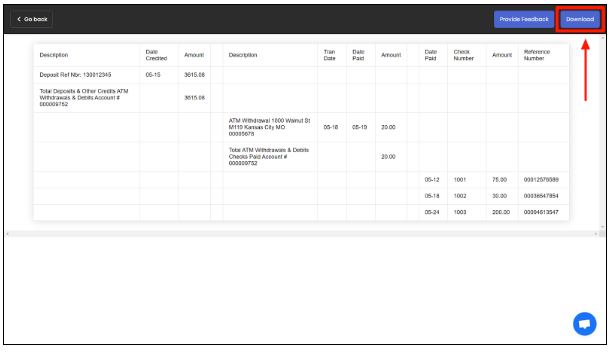
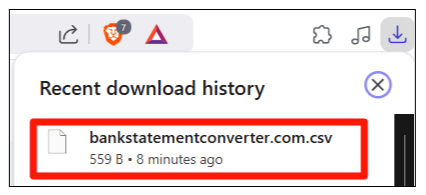
Step 6: You can access the downloaded file from the downloads section of your browser.
What Are The Benefits Of Having A Bank Statement In A CSV File?
Bank statements in CSV format are sometimes necessary as they allow for the easy and automated processing of financial data by various tools and software applications.
The tools include accounting software, spreadsheet programs, and several data analysis platforms.
Also, CSV files are a type of spreadsheet that can be opened with programs like Excel, Google Sheets, or Apple Numbers. This makes the handling of data easy for a professional.
Plus, merely sharing the bank statements with someone else can be a breeze if you convert your account statement PDFs into CSV files.
Plus, it can also help you track your spending more easily and see where you may need to cut back.
How To Open Download A Citibank Credit Card Statement On Google Sheets?
Step 1: Go to the Citibank website.
Step 2: Enter your User ID and Password.
Step 3: Click on Sign On.
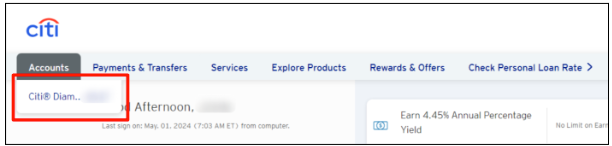
Step 4: Click on Accounts and choose the relevant one.
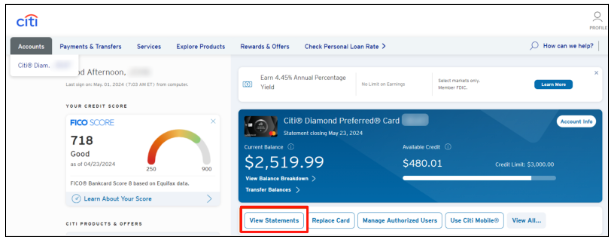
Step 5: Click on View Statement.
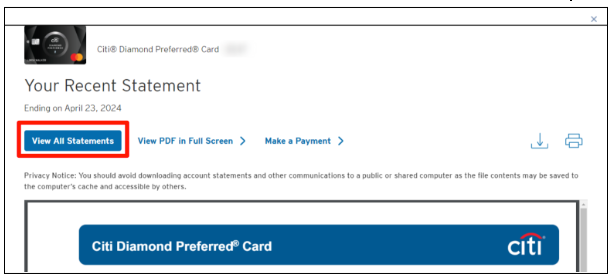
Step 6: On the popup with your most recent statement, click on View All Statements.
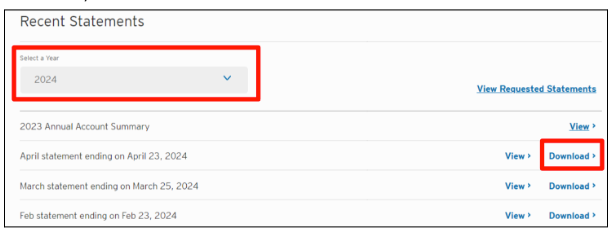
Step 7: Scroll down until you see the Select a Year dropdown, and select the year you wish to.
Step 8: Select the relevant statement from the selected year and click Download to save the statement to your device.
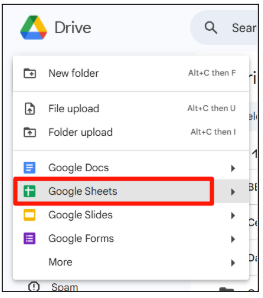
Step 9: Go to your Google Drive and sign in with your Google account.
Step 10: Click on New > Google Sheets.
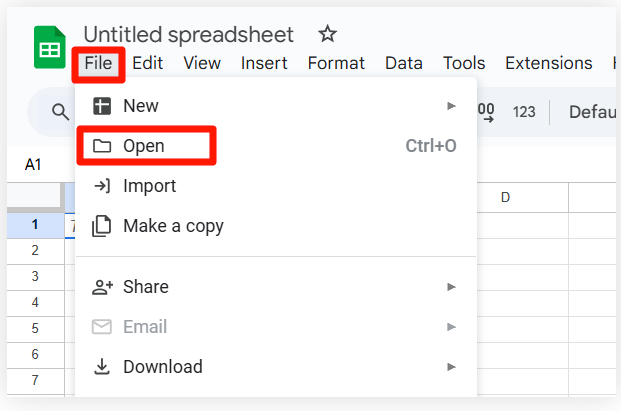
Step 11: In the Google Sheet, click on the File tab and select Open.
Step 12: Go to the Upload tab, select the download file, and click Browse.
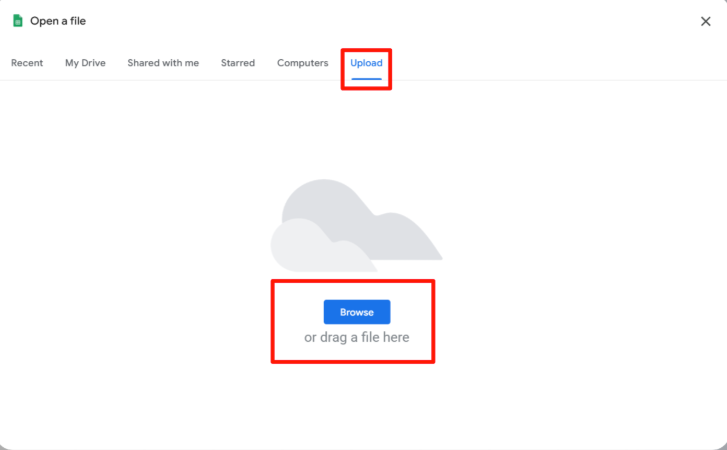
Step 13: Choose the CSV file that you downloaded earlier.
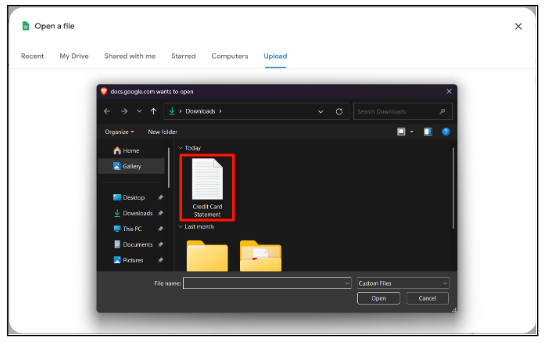
Step 14: Click on it to open it using Google Sheets.
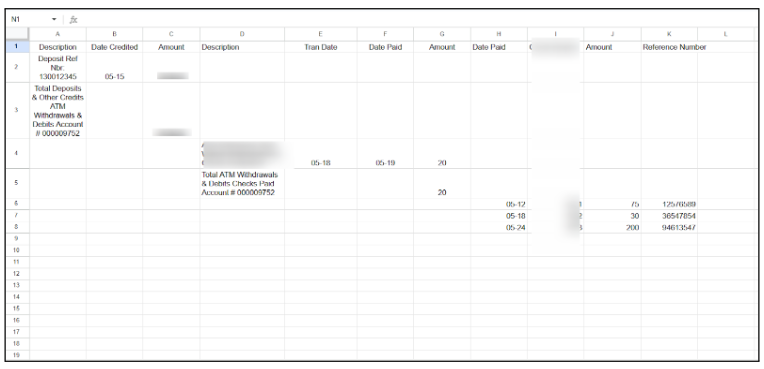
Note: You can follow these same steps to open the CSV file in Microsoft Excel.
Citi Customer Support
If, for some reason, you are not able to log in to your Citi account or are not receiving paperless account statements, you can contact Citi’s general support. You can choose from dedicated support for credit card, banking, investments, and lending services.
On the Citi homepage, you can find FAQs, pages, and more by clicking on the “How can we help” link at the top right corner. It is also important to trust only the official support links, pages, and phone numbers listed by Citi on its official website.
Note: Never share your login details or CSV files with untrusted platforms or personnel.
Also Read:
Conclusion: You Can Convert The Citi Account Statement Into A CSV File With Online PDF To CSV Converters
A CSV report is at times necessary to effectively budget, share, and track your expenses, data analysis, and a lot more. If you too want to convert your paperless Citi bank account statements, then online PDF to CSV converters are the answer.
All you need as a prerequisite is your Citi bank account statement, if you don’t have one downloaded yet you can do so by following the steps highlighted in the above sections. You can get the PDF to CSV file by uploading the file to the online tool mentioned above.
Within a few clicks, you can get a CSV file on your computer that you can upload to Microsoft Excel or Google Sheets. At any moment during the downloading of your Citi account statements, if you face an issue, you can contact Citi’s customer service.
FAQs
To download Citibank statements, you can log in to your Citibank account and go to your account history. You can then download your statement as a CSV or PDF file.
You can find your CSV file on your computer by navigating to the location where you saved it originally. This is usually your “Downloads” or “Desktop” folder. If you don’t remember where you saved it, you can search for the file name on the computer search bar.
CSV stands for comma-separated values. It is a file format that uses commas to separate the values and new lines to separate records. These files are mainly used to store the tabular data in spreadsheet programs.
An order is called a CSV order when it is placed by uploading a Comma Separated Values (CSV) file. This file is a simple text file in which each data point related to the order, such as the customer details, order number, quality, etc., is separated by commas.
The term “Export to CSV” generally means saving data from a program or application in a “comma-separated values” file, also known as the CSV file.

Anshu is a content enthusiast with a passion for exploring entertainment and media trends. At YouTrial.TV, he brings his knowledge of streaming platforms and recommendations to help users make the most of their viewing experience. Anshu enjoys staying up-to-date with the latest in the digital world and sharing valuable insights with readers.