
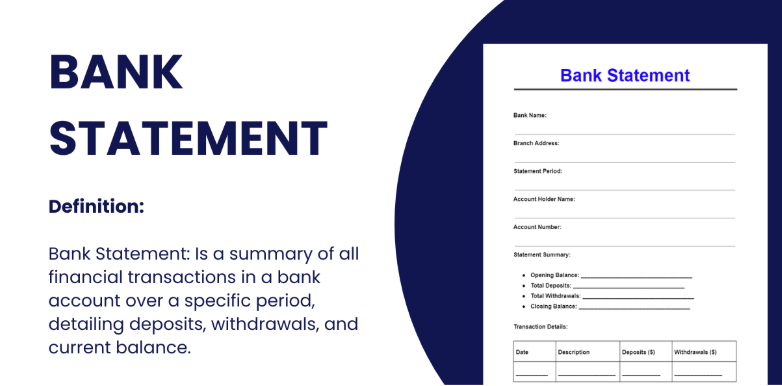
Bank statements are essential financial documents that provide a detailed record of your account transactions over a specific period. They are commonly used for monitoring account activity, budgeting, and reconciling transactions.
Additionally, bank statements are often required for loan applications, tax filings, and other financial assessments. Whether you’re managing personal finances or running a business, having access to up-to-date bank statements is crucial for ensuring financial accuracy and transparency.
In this guide, we will walk you through the simple steps to download your bank statement, highlighting important considerations along the way.
How To Download A Bank Statement?
There are several convenient ways to download your bank statement, and one of the most common methods is through email.
Here’s how you can do it:
1. From Email
Most banks send monthly statements directly to your email address, allowing you easy access to your account activity. These statements are typically sent as PDF attachments and contain a detailed summary of your transactions for the month.
Steps to locate and download statements from your email:
On Mobile:
- Open your email inbox and search for the bank’s monthly statement email.
- Open the email and locate the attached PDF file.

Tap on the attachment to view or download the statement. You can usually save it directly to your device or a cloud storage service for easy access.
On Desktop
- Sign in to your email account and find the monthly bank statement email.
- Open the email and click on the attached PDF.
- Save the file to your computer by clicking the “Download” button or right-clicking and selecting “Save As.”
Alternatively, if you’re unable to locate your statement through email, you can also download your bank statement directly from your bank’s online platform or mobile banking app.
2. From Netbanking
Steps to download a bank statement from online banking:
- Go to your bank’s website. Open your preferred browser and visit your bank’s official website.
- Log in to your online banking account. Use your username and password to access your account securely.
- Navigate to Statements or e-Documents. Once logged in, locate the section labeled “Statements,” “e-Documents,” or something similar. This section may vary slightly depending on your bank.
- Select the account. Choose the account from which you want to download the statement, especially if you have multiple accounts linked to your online banking.
- Choose the statement or date range. Select the specific statement period or the date range for which you need the statement.
- Choose the file format for downloading, such as PDF or CSV, depending on your preference.
- Download the statement. Click the “Download” button, and the statement will be saved to your device and ready for use.
For ICICI
For ICICI Bank customers, downloading a bank statement is a secure and straightforward process. However, the bank requires an additional layer of authentication before you can access your statements online.
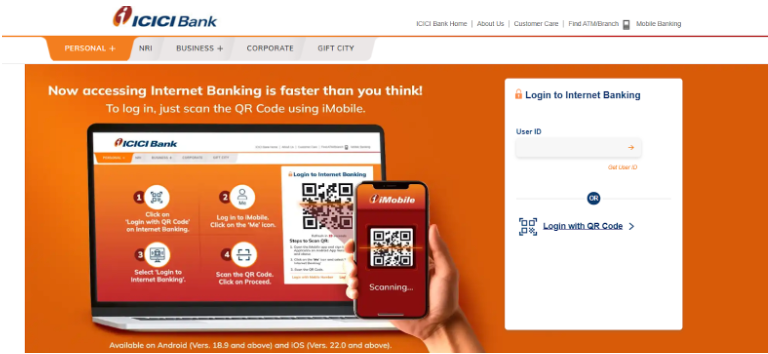
Steps to download your ICICI bank statement:
- Authenticate with your account and Debit Card details: Before accessing your bank statement, ensure that you authenticate using your ICICI Debit Card details along with your account credentials.
- Log in with your User ID and Password: Enter your User ID and password to access your online banking account. If you don’t have a User ID or Password, you can request one instantly online.
- View your statement: Once logged in, you’ll be able to view and download your account statement for periods extending up to the last four years.
- Register for email statements: If you prefer to receive statements regularly, you can register your email ID with ICICI Bank to receive e-statements directly in your inbox.
These steps provide quick access to your financial records, whether you’re checking for a recent statement or accessing older records. ICICI also offers a convenient way to request your login credentials if you haven’t already set them up.
For SBI
If you are a customer of SBI then follow these instructions to get your bank statement.
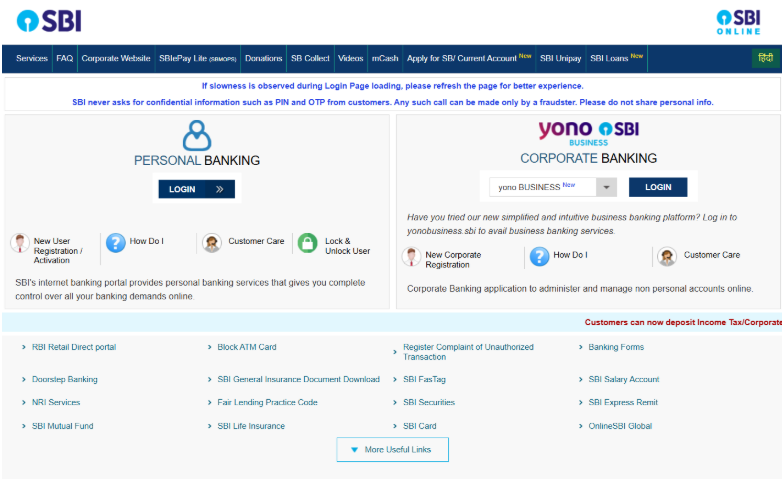
- Login into your SBI net banking account: Open your browser, go to the official SBI website, and log in using your username and password to access your online banking account.
- Click on ‘My Accounts’: Once logged in, locate and click on the “My Accounts” tab in the main menu to view your linked accounts.
- Select ‘Account Statement’: From the list of options, click on “Account Statement” to proceed with viewing or downloading your bank statement.
- Select the account for which you want the statement: If you have multiple accounts with SBI, choose the specific account from which you would like to download the statement.
- Choose the statement period by date or year: Select the date range or specific year for the statement history you need. You can opt for a customized date range or use predefined options like monthly, quarterly, or annual.
- Select the download option: Finally, choose the file format for the statement, such as PDF or Excel, and click the download button to save it to your device.
3. Using ATMs
In addition to online and email methods, you can easily obtain a mini-statement directly from an ATM. A mini-statement provides a summary of your last few transactions, which is especially useful for quick checks on your account balance and recent activity.
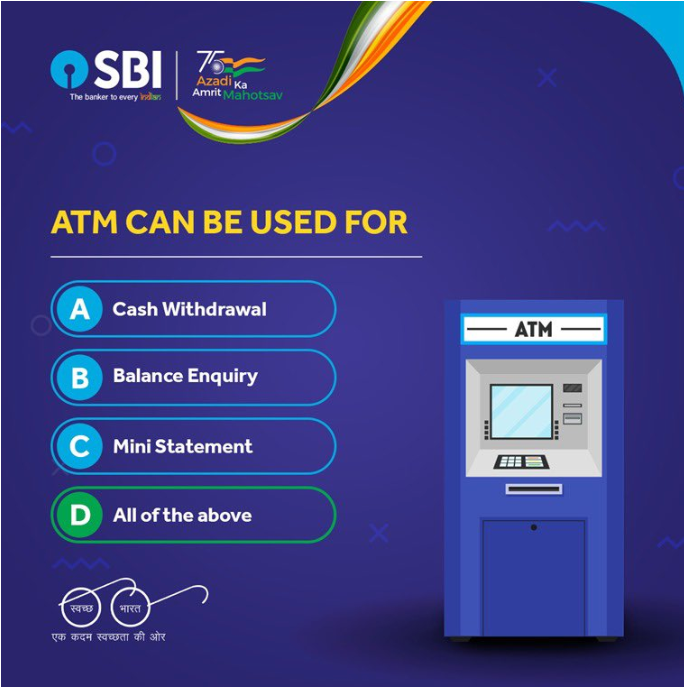
Steps to obtain a mini-statement from an ATM:
- Go to the nearest ATM: Visit any ATM that supports your bank’s card and services. Most ATMs offer mini-statement services.
- Insert your debit card: Place your debit card into the ATM machine’s card slot.
- Enter your PIN: Securely enter your PIN number to authenticate and access your account.
- Select the Statement or Mini-Statement option: On the ATM screen, choose the “Statement” or “Mini-Statement” option to proceed.
- Choose the statement option: If available, you can select a detailed account statement. Alternatively, a mini-statement will display a brief list of your recent transactions.
- Select the “Get Mini Statement” option: If you want a physical copy of your mini-statement, choose the “Get Mini Statement” option to print it out on the ATM receipt.
This method is quick and ideal for accessing a snapshot of your recent account activity without needing internet access.
Formats To Prefer For Downloading Bank Statement
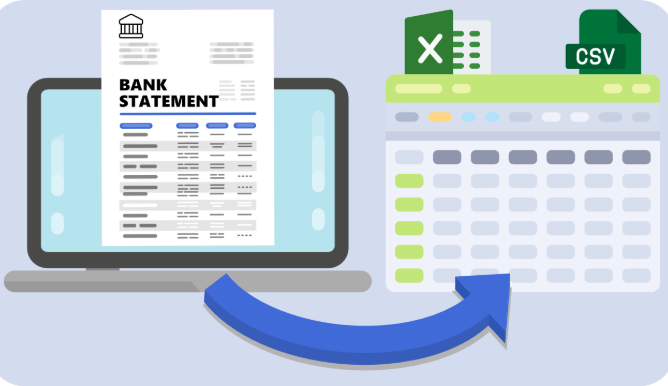
Two formats are available for downloading your bank statement: PDF and CSV.
PDF Format
- Universal Compatibility: PDFs can be opened on almost any device (computers, tablets, smartphones) regardless of the operating system, ensuring easy access for loan officers and institutions.
- Preserves Document Integrity: Unlike Word or Excel, PDFs maintain the original formatting, layout, and content, preventing any alterations or loss of details across different devices.
- Professional Appearance: PDFs present documents with a polished, professional look, ensuring that the application appears as intended without unexpected shifts in fonts, sizes, or spacing.
- Security Features: PDFs allow for password protection, encryption, and digital signatures, offering enhanced security for sensitive financial information in loan applications.
- Compact File Size: PDFs are typically smaller in size, making them easier to upload, email, or store without taking up excessive space on devices or servers.
How To Select PDF Format When Downloading
When downloading your bank statement, most banks allow you to choose the format for the file. Here’s how you can select PDF format:
- Log in to your bank’s online banking portal: Use your username and password to access your account.
- Navigate to the ‘Statements’ or ‘E-Documents’ section: Once logged in, find the section where you can access your bank statements, typically under the “Accounts” or “Statements” tab.
- Choose the account and statement period: Select the account you want to view and choose the date range or specific period for the statement you need.
- Select the file format option: Most banks provide a choice of file formats, such as PDF, CSV, or Excel. Look for the dropdown or selection menu labeled “File Format” or similar.
- Select PDF: Choose “PDF” as your preferred format for the statement. This ensures that the document will maintain its formatting and can be easily saved or printed.
- Download the statement: Click on the “Download” button, and the statement will be saved as a PDF file to your device.
CSV/Excel Format
Method 1: Download Directly from Online Banking (If Excel Format is Available)
To download your bank statement in Excel format, follow these steps:
- Log in to your bank’s online banking portal using your username and password to securely log in to your account.
- Navigate to the ‘Statements’ or ‘E-Documents’ section. Once logged in, find the section where you can view and download your bank statements, usually under tabs like “Accounts,” “Statements,” or “Transaction History.”
- Choose the specific account for which you want the bank statement.
- Select the date range for which you want the statement. You can usually opt for monthly, quarterly, or a custom date range.
- Look for the option to choose the file format for your statement. You’ll typically see choices like PDF, Excel (XLS), or CSV.
- Choose “Excel” or “XLS” format (or “CSV” if available), depending on your preference. Excel format is ideal for more advanced data manipulation, while CSV can be used in most spreadsheet programs.
- Download the statement: Click the “Download” button to save the statement as an Excel file (.xls) or CSV file to your device.
Method 2: Convert a PDF Bank Statement to Excel
If your bank provides statements in PDF format and you need them in Excel, you can convert the PDF to an Excel file using a conversion tool.
- Download the PDF bank statement: Log in to your online banking portal and download your bank statement as a PDF.
- Visit ConvertBankStatement.io: Go to the website convertbankstatement.io, a tool designed for converting PDF bank statements to Excel or CSV formats.
- Upload your PDF file: On the site, click on the upload button and select the PDF statement you downloaded from your bank.
- Select your desired format: Choose either “Excel” or “CSV” as the output format for the conversion.
- Convert and Download: Click the “Convert” button. Once the conversion is complete, download the newly generated Excel or CSV file.
This method allows you to quickly convert any PDF bank statement into a usable Excel or CSV file for further analysis and record-keeping.
How To Select Statement Period?
When downloading your bank statement, most banks allow you to choose the time period for which you want the statement. This gives you flexibility in selecting the exact range of transactions you need. Here’s how you can choose different time periods:
Steps to Choose the Statement Period
Log in to your online banking account: Use your username and password to access your account securely.
Navigate to the ‘Statements’ or ‘E-Documents’ section: Once logged in, go to the section where you can view and download bank statements, typically under tabs like “Accounts,” “Transaction History,” or “Statements.”
Select the account: Choose the account for which you want to download the statement (if you have multiple accounts).
Choose the Statement Period.
You will be prompted to select a date range for the statement. Common options include:
1 month: For a single month’s transactions.
3 months: For a summary of the last three months.
6 months: For a half-year overview of your account activity.
Custom Date Range
Some banks allow you to select specific start and end dates if you need a tailored statement for a particular period.
Confirm the Selection
Once you’ve chosen your desired period, confirm your selection and proceed to download or view the statement.
What Are The Common Issues Of Downloading Bank Statements?
There are many common issues that are faced while downloading bank statements, which include being unable to find the download option, download errors, etc.
What To Do If You Can’t Find The Download Option
If you are not able to download your bank statement, then there are some common reasons for this issue.
Possible Reasons:
The download option may be hidden in a submenu.
You might be looking in the wrong section (e.g., under “Transactions” rather than “Statements”).
Some banks have different navigation paths for different account types (personal vs. business).
What to Do:
Double-check the menu: Make sure you’re looking under the correct tab, such as “Statements,” “Transaction History,” or “E-Documents.”
Check for a dropdown: Some banks place the download option inside a dropdown menu or on the next page after selecting the account or date range.
Use the search feature: If your online banking portal has a search function, use it to quickly locate the “Download” or “Statement” option.
How To Handle Download Errors
If you are having issues with downloading your statement, here is a list of things that you should do.
Browser issues: Sometimes, the browser might prevent the download due to settings or pop-up blockers.
Server issues: The bank’s website may experience temporary server problems.
File format issues: The file may be corrupted, or the format may not be compatible with your device.
What to Do: Clear browser cache and cookies: Clear your browser’s cache and cookies, then try downloading the statement again.
Try a different browser: If the issue persists, try using a different browser (e.g., Chrome, Firefox, Safari) or switch to a private/incognito window.
Disable pop-up blockers: Ensure your browser’s pop-up blocker does not prevent downloads.
Check internet connection: A slow or unstable internet connection can cause issues with downloading large files, so ensure your connection is stable.
Also Read:
Conclusion: Download Your Bank Statement The Right Way!
Downloading your bank statement is a simple process, whether through email, online banking, or ATMs. By selecting the right format, such as PDF or Excel, you can easily access and manage your financial data.
In case of any issue, you also have alternative methods like mobile banking, email statements, or online conversion tools that can help make sure you stay on top of your financial records, making this task both efficient and hassle-free.

Anshu is a content enthusiast with a passion for exploring entertainment and media trends. At YouTrial.TV, he brings his knowledge of streaming platforms and recommendations to help users make the most of their viewing experience. Anshu enjoys staying up-to-date with the latest in the digital world and sharing valuable insights with readers.